Import Your Docket from Excel
Go from a spreadsheet to a fully populated prosecution docket in minutes. Upload your application numbers and Abigail fetches the complete prosecution history, calculates deadlines, and sets up notifications.
Navigate to My Docket
Click "Docket" in the left sidebar to open your prosecution docket. If this is your first time, you will see an empty docket with an option to add cases.
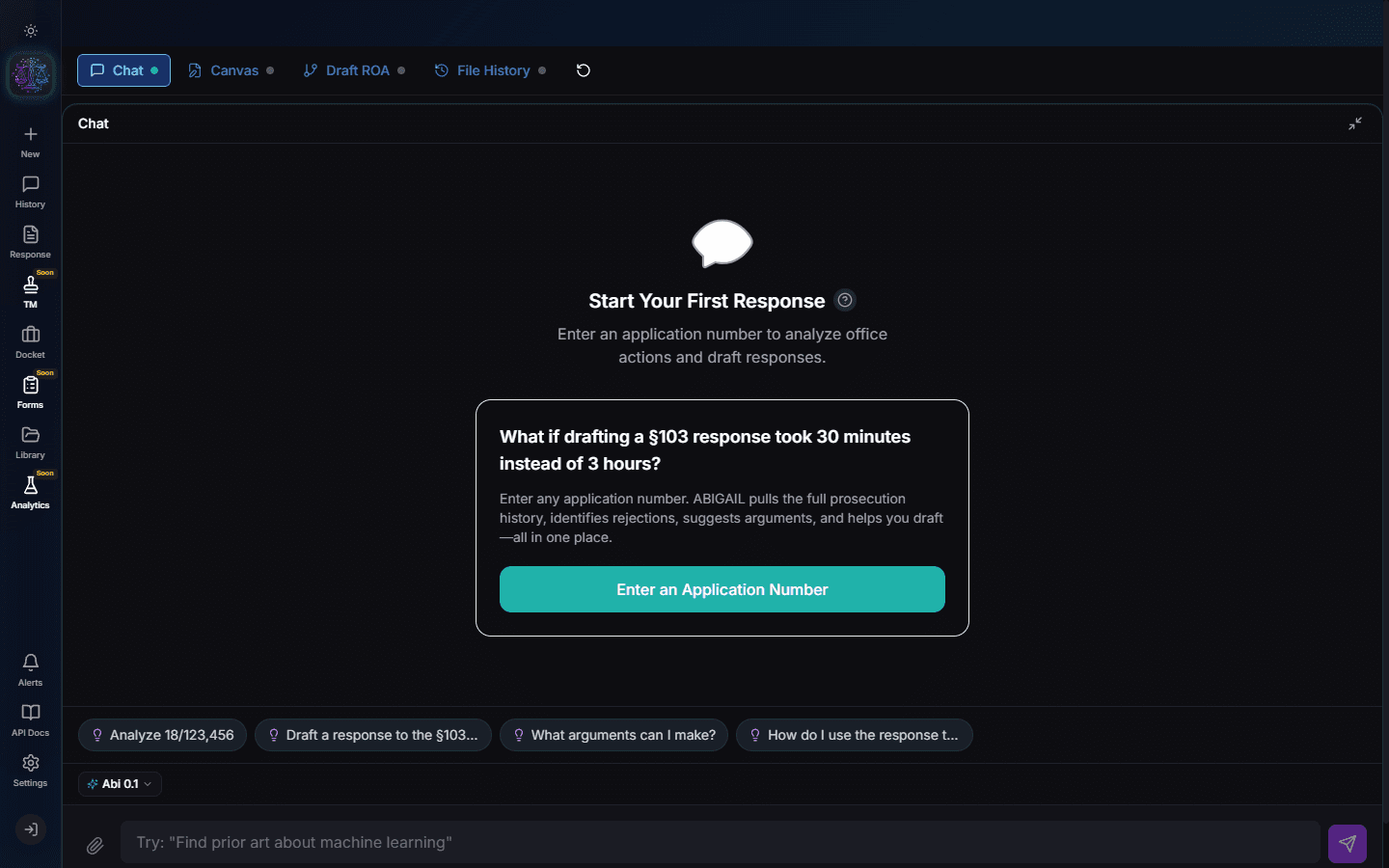
Download the Excel Template
Click "Import from Excel" at the top of the docket page. Download the template spreadsheet. It has one required column: Application Number. Optional columns include Client Name, Docket Number, and Attorney.
Note
The template accepts application numbers in any format: 18/001,002 or 18001002 or 18-001-002.
Fill In Your Application Numbers
Open the template in Excel or Google Sheets. Paste your application numbers into column A. You can import up to 500 applications at once.
- Column A: Application Number (required)
- Column B: Client Name (optional)
- Column C: Docket Number (optional)
- Column D: Assigned Attorney (optional)
Upload the Spreadsheet
Drag and drop your completed spreadsheet onto the upload area, or click "Choose File" to select it. Abigail validates the application numbers and begins processing.
Watch Auto-Population
Abigail fetches the complete prosecution history for each application from USPTO. You will see a progress indicator as each case is populated with: filing date, status, examiner, art unit, all deadlines, and the full document timeline.
Pro Tip
Large imports (100+ applications) run in the background. You can navigate away and come back -- the progress is saved.
Verify Your Docket
Once import completes, your docket shows all cases with urgency badges (Critical, High, Medium, Low). Cases with pending Office Actions are flagged automatically. Click any case to see its full detail page.
Try It Yourself
Put what you learned into practice. Start free with $25 in credits.