Alerts, Email Notifications & SMS
Never miss a deadline again. Configure email and SMS notifications for deadline warnings, analysis completions, form approvals, and system updates.
Navigate to Alerts
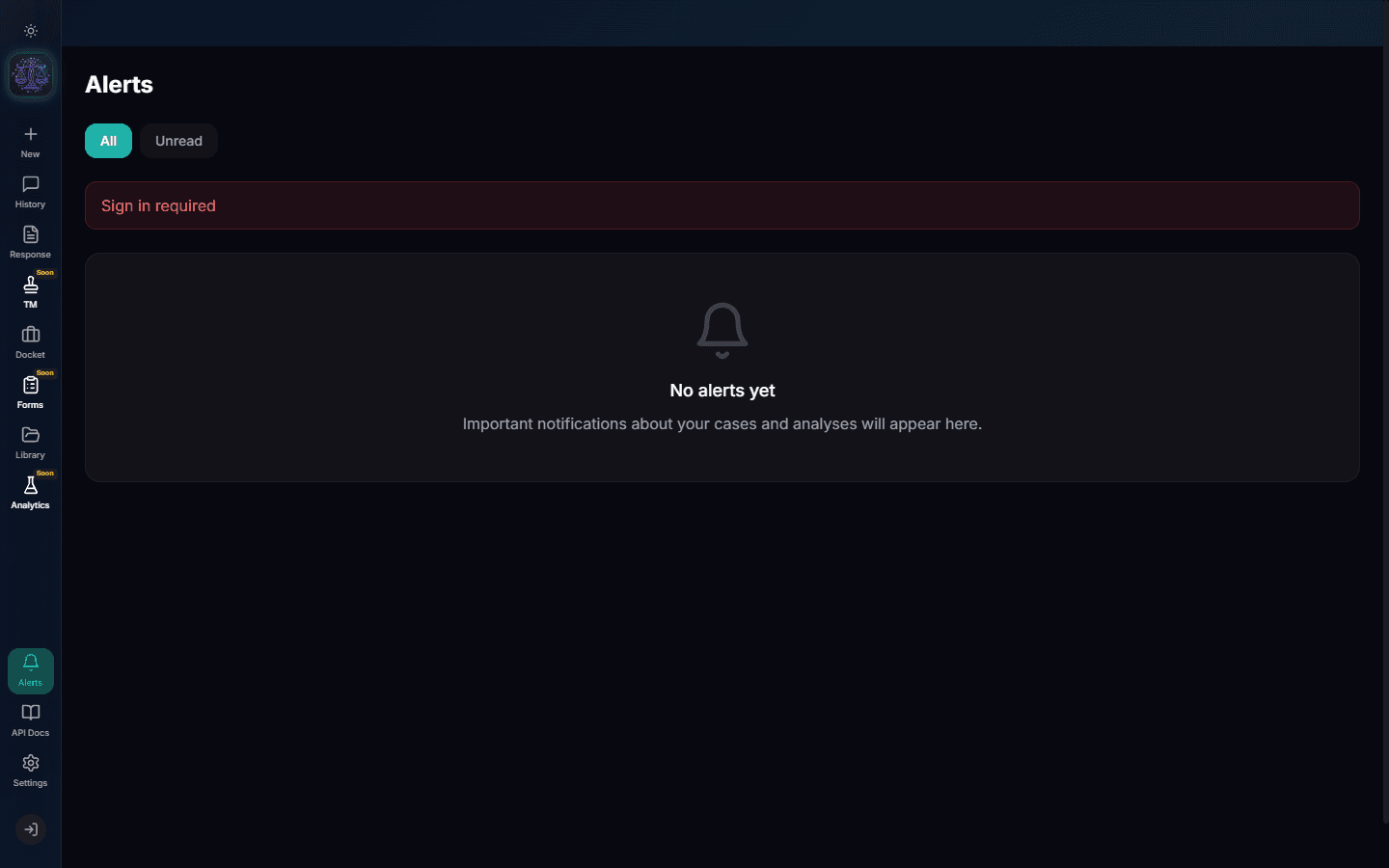
Click the Bell icon in the sidebar to open your Alerts page. This is your notification center showing all recent alerts: deadline warnings, analysis completions, form approvals, and system updates.
Alert Types and Filtering
Alerts are color-coded by type: red for critical deadlines, blue for analysis updates, green for approvals, and gray for system notices. Use the filter buttons to show All or only Unread alerts.
Mark as Read
Click an alert to view its details and mark it as read. Use "Mark All as Read" to clear the badge counter. Clicking an alert also navigates you to the relevant resource (case, form, or analysis).
Configure Email Notifications
Go to Settings > Notifications to configure which alerts trigger email notifications. Options include: deadline reminders (7 days, 3 days, 1 day before), analysis completion, form approval requests, and billing alerts.
- Deadline reminders: Choose how many days before a deadline you want to be notified
- Analysis alerts: Get notified when a background analysis completes
- Form approvals: Receive emails when forms need your review
- Billing: Get notified when credits are low
Set Up SMS Notifications
Enter your phone number in Settings > Notifications > SMS section. Verify your number with a one-time code. Then enable SMS for critical alerts like approaching statutory deadlines.
Important
SMS is reserved for critical deadline alerts only. Non-critical notifications are email-only to avoid alert fatigue.
The Unread Badge
The Bell icon in the sidebar shows an unread count badge. This updates in real-time as new alerts arrive. The count reflects only unread alerts, not total alerts.
Try It Yourself
Put what you learned into practice. Start free with $25 in credits.