Managing Your Docket
Your prosecution docket is the command center for all your patent cases. Learn to filter, sort, track deadlines, and drill into case details.
Docket Overview
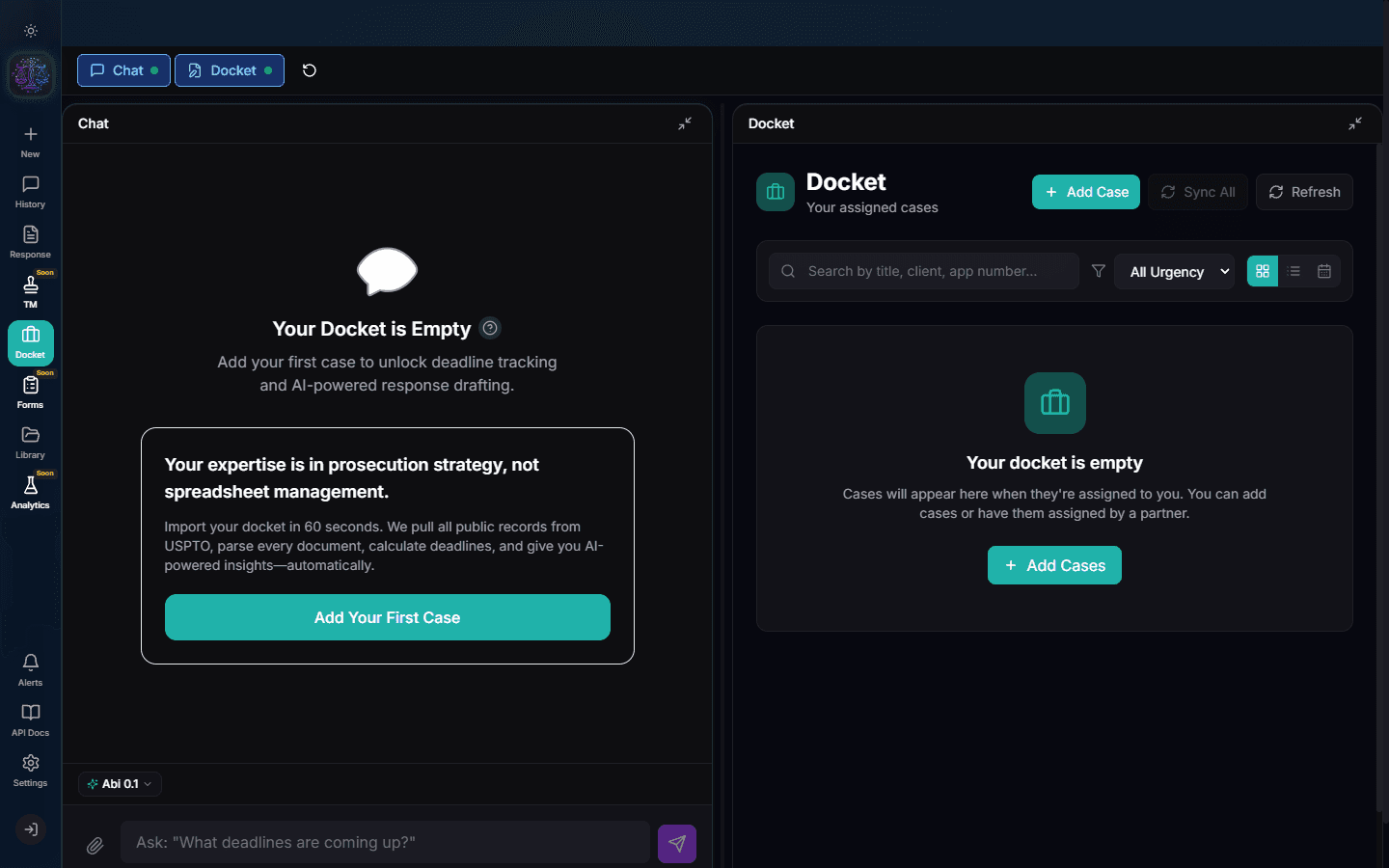
The docket page shows all your cases in a sortable table. Each row displays: application number, title, status, examiner, art unit, next deadline, and urgency level. Metrics at the top summarize your open deadlines, critical cases, and overdue items.
Filter by Status and Urgency
Use the filter buttons at the top to narrow your view. Filter by status (Office Action, Response Pending, Final Rejection, Allowed, NOA) or urgency (Critical, High, Medium, Low). Combine filters to find exactly what you need.
Sort and Search
Click any column header to sort by that field. Use the search bar to find cases by application number, title, client, or docket number. Search is instant and filters as you type.
Open a Case Detail
Click any case row to open its full detail page. The detail page shows: complete metadata (inventors, assignees, entity status), prosecution timeline, continuity chain, priority claims, and all associated documents.
Sync with USPTO
Click "Sync" on a case to pull the latest data from USPTO. Abigail checks for new Office Actions, updated statuses, and recalculates all deadlines. Portfolio-wide sync runs automatically on a schedule.
Note
Portfolio sync runs in the background. Large portfolios (500+ cases) may take several minutes to complete.
Add a Case Manually
Click "Add Case" to enter a single application number. Abigail fetches and populates the case immediately. You can also assign it to a client, attorney, and custom docket number.
Audit History
Every case tracks modification history. Open a case detail and scroll to the Audit History section to see who made changes, when, and what was modified. This is essential for compliance and malpractice prevention.
Try It Yourself
Put what you learned into practice. Start free with $25 in credits.