Navigating the Dashboard
Master the three-panel workspace: Chat, Canvas, and Claims Visualizer. Learn to resize panels, use keyboard shortcuts, and manage your session history.
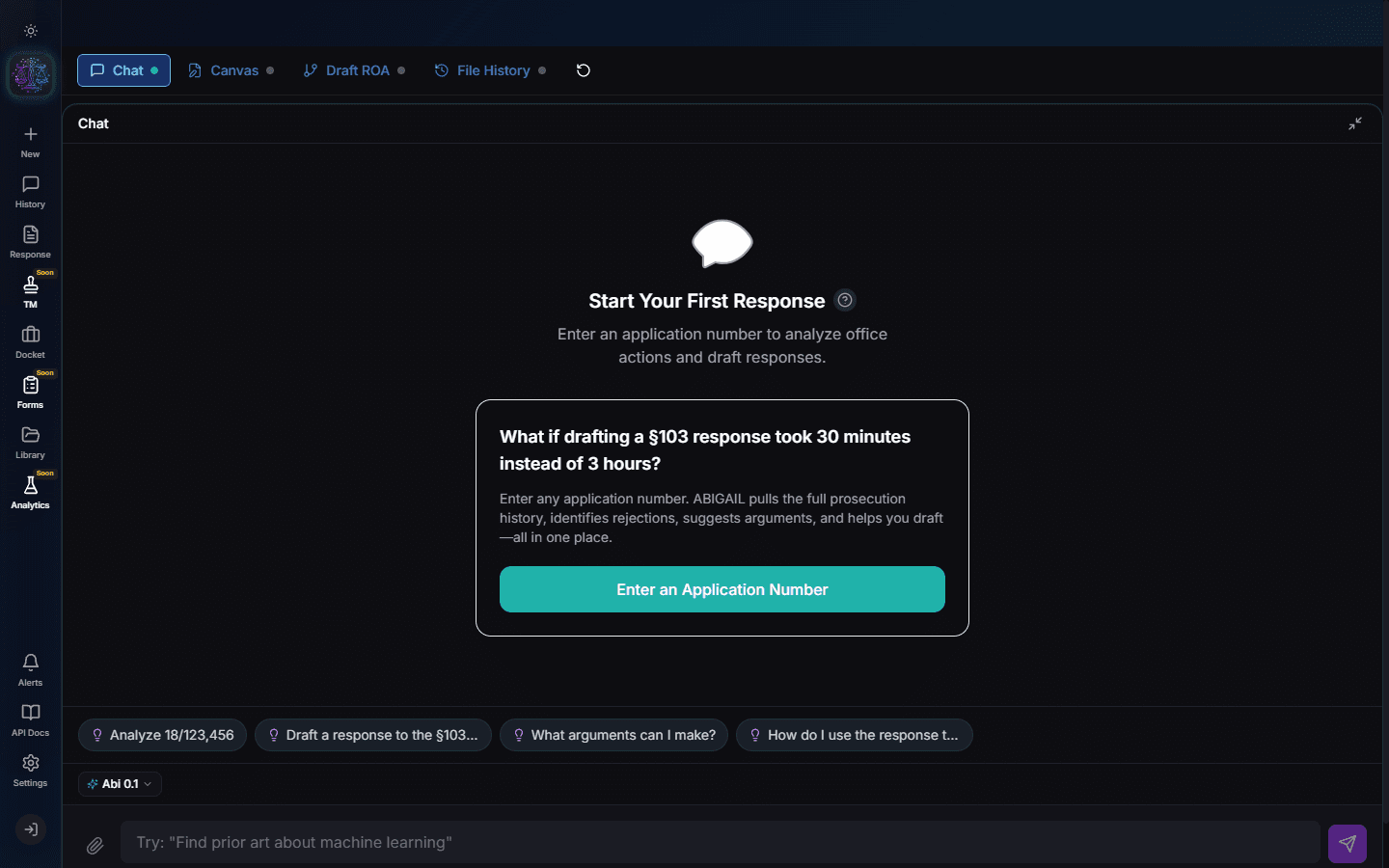
Understanding the Three-Panel Layout
The dashboard is divided into three panels. The Chat panel (left) is where you interact with Abigail. The Canvas panel (center) holds your draft response. The Claims Visualizer (right) shows the structured analysis of your claims, prior art, and rejections.
Resizing Panels
Grab the divider between any two panels and drag to resize. Double-click a divider to snap it to a preset width. On mobile, panels become full-screen tabs that you swipe between.
Pro Tip
Press Ctrl+1, Ctrl+2, or Ctrl+3 to quickly focus a specific panel.
Session History
Click "History" in the sidebar to see all your past sessions. Each session is tied to a specific application and contains the full conversation, canvas draft, and claims analysis. Click any session to resume where you left off.
Keyboard Shortcuts
Press "?" to open the keyboard shortcuts modal. Key shortcuts include: Ctrl+N (new session), Ctrl+/ (focus chat), Ctrl+Enter (send message), Ctrl+S (save canvas draft).
Dark and Light Mode
Toggle between dark and light mode using the sun/moon icon in the sidebar. Your preference is saved across sessions.
Mobile Experience
On phones and tablets, the dashboard adapts to a single-panel view with a bottom tab bar. Swipe between Chat, Canvas, and Claims Visualizer. The mobile header provides quick access to session history and settings.
Try It Yourself
Put what you learned into practice. Start free with $25 in credits.